Send SMS from Excel — upload your list and you're done
Your contacts are already in an Excel or CSV file. Upload it, point out the column with mobile numbers and use the other columns as tags: every recipient gets their own message. No macros, no plug-in, no installation — everything happens in your browser.
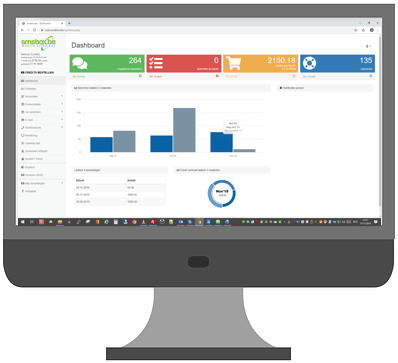
From Excel file to sent SMS
Prepare the file
Put one recipient per row, with a column for the mobile number and a column for every field you want to personalize. Put the column names in the first row.
Upload
Upload the .xlsx or CSV file in SMSBOX and indicate which column contains the mobile numbers.
Write the message with tags
Use the column names between percent signs in your text, for example %naam%, and check the preview per recipient.
Send or schedule
Send immediately or pick a date and time, then follow the delivery status per message.
What does your file look like?
One row per recipient, one column with the mobile number, plus as many extra columns as you like. The names in the first row are immediately the tags you can use in your message.
| mobile | name | order no. | amount |
|---|---|---|---|
32496123456 | Els | A-2411 | €42,50 |
32478998877 | Karim | A-2412 | €118,00 |
32471223344 | Sofie | A-2413 | €76,20 |
Dear %naam%, your order %ordernr% of %bedrag% is ready for pickup.
Dear Els, your order A-2411 of €42.50 is ready for pickup.
At the top the template with tags, below it what the first recipient actually receives32496123456 or +324961234560496…) is recognized and converted.xlsx and .csv are supportedCheck before anything goes out
The biggest risk of a list campaign is a tag that stays empty somewhere — a message that starts with "Dear ," immediately looks sloppy. That's why SMSBOX shows a preview per contact before sending: you browse the actual messages exactly as your recipients will receive them.
At the same time you see how many characters each message counts and whether it fits in a single SMS. Personalization makes messages unequal in length: one recipient with a long name can go just over the 160-character limit.
Calculate characters More about personalization
One-off list or fixed audience?
If your list comes fresh from another system every time — a daily export from your calendar, accounting package or webshop — you upload it each time. If the audience stays largely the same, save the import as a group in your online phone book and send next time with a single click, without uploading.
If you send the same kind of list every day, the next step is the REST API: your own software passes the data directly and no file is involved at all.